
Browser Recommendations
Regardless of which browser you currently use, I recommend not limiting yourself to just one. Different browsers have their own distinct strengths and weaknesses; simply leveraging the advantages of various browsers to meet your diverse daily needs is the best approach.
The browsers I currently use regularly include Safari, Helium, Search, and Firefox.
Safari is my go-to browser for reading blogs and researching information. It boasts several notable advantages: a clean, aesthetic design, a lightweight footprint that conserves battery, robust privacy protection, excellent trackpad support, and seamless cross-device integration.
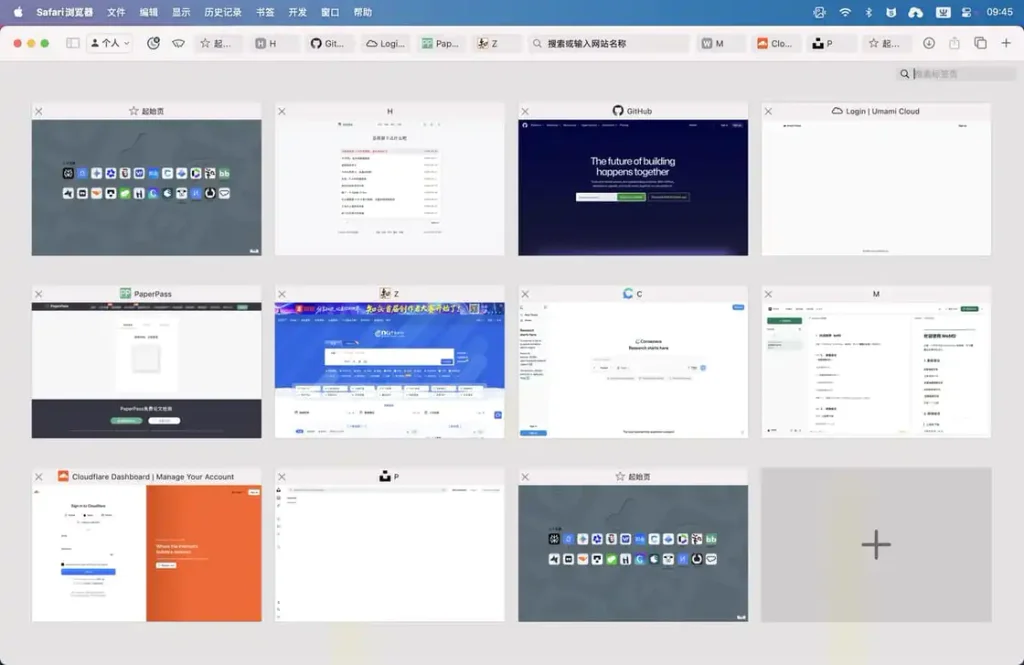
For instance, the feature in Safari that allows you to pinch with two fingers to preview all open web pages is something I have rarely seen in other browsers.
Helium and Search are two Chromium-based browsers that I highly recommend. They load incredibly fast, strip away much of the bloat found in Chrome, and feature a minimalist design that perfectly suits my aesthetic preferences. I use Helium as my default browser; in my opinion, Chromium-based browsers are truly in a league of their own when it comes to loading speeds—significantly faster than Firefox or Safari.
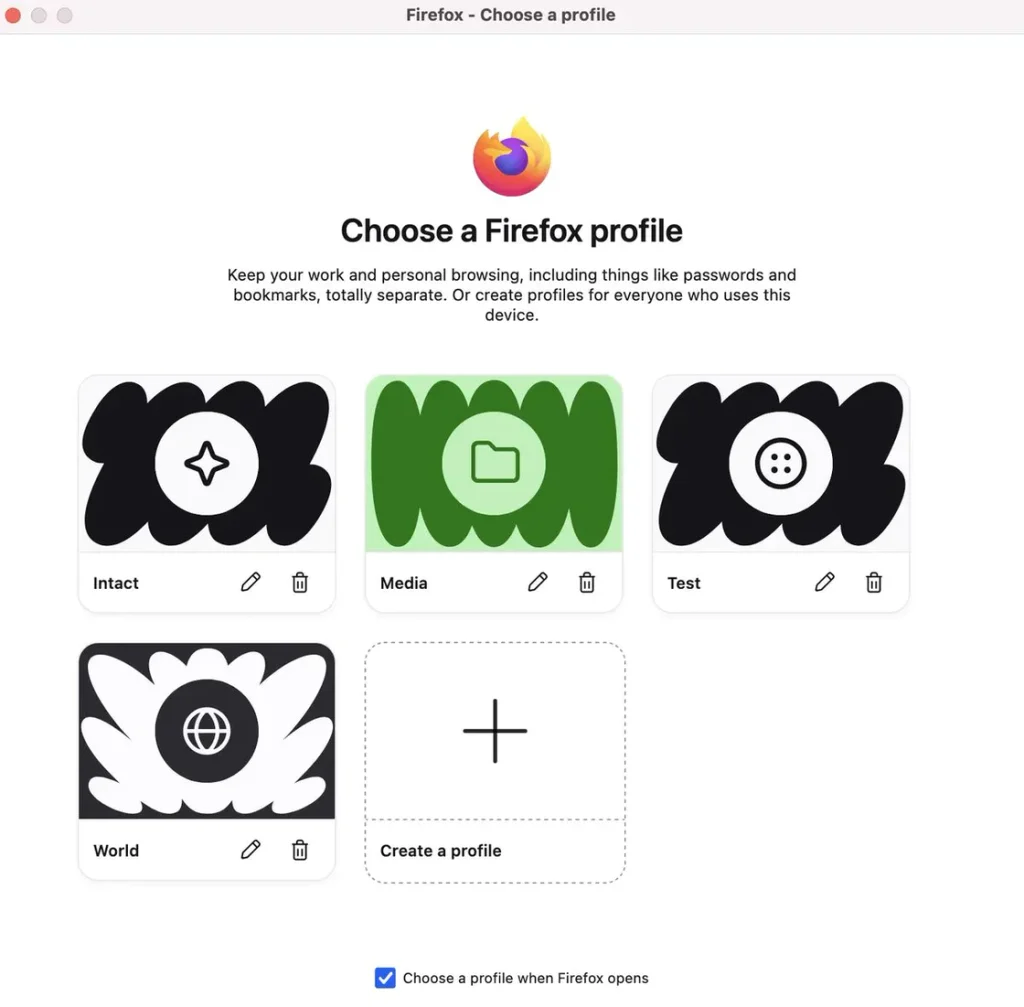
I primarily use the Firefox browser to access websites that require a login. It features a “Profile” function that allows you to create multiple separate environments—or containers—within the browser, keeping the data and information for each one completely isolated. For instance, when I need to publish content to platforms like WeChat Official Accounts or Sspai, I create a “media” container in Firefox; I store only the login credentials for my media channels there, so I can simply open it and publish my content directly.
Setup
Once the new browser is installed, a few necessary settings need to be configured. These mainly fall into the following categories.
Download Folder
I recommend creating a folder named “InBox” on your devices (PC, smartphone, etc.) to store all your screenshots, new files, and items that are pending or currently being processed. You should also set your browser’s download location to this folder.
This will keep your computer much tidier.
Search Engine
If you have access, use Google; otherwise, set it to the international version of Bing.
Although Google collects user data, its search experience is undeniably excellent (even if not necessarily the absolute best). For instance, when using DuckDuckGo, I sometimes fail to find specific websites I want to visit.
Therefore, if you don’t use search engines very often, you might opt for one that offers better privacy protection. However, if you prioritize search quality and user experience—and aren’t overly concerned about digital privacy—then Google and Bing are great choices.
This raises a point worth considering: many of the world’s digital services that offer a “top-tier experience” are run by for-profit organizations. To provide that great experience, they must generate revenue through various means—often involving ads or the collection of personal data. If we are too bothered by these practices, we miss out on using the best digital services available.
Ultimately, you need to weigh your own needs and usage habits to choose the tools that work best for you.
Account Login
Don’t log in unless necessary.
Personally, I don’t feel it is necessary to force yourself to log in to your browser account.
I have no need for cross-device browser synchronization; the role of the browser on mobile devices has become increasingly marginal for me. Even when I do use a browser on my phone, it’s usually just for a quick search—I rarely have other requirements.
However, if you keep your personal and work computers separate and need to sync browser data between them, I recommend cultivating a backup habit: regularly export and back up your extensions, scripts, bookmarks, and browsing history. This way, if I reinstall the browser or sync to a different one, I can simply import these backed-up files to instantly have a browser that feels familiar and comfortable to use.
Ad Blocking
If you are a power user when it comes to browsers, you have almost certainly heard of uBlock Origin.
It is an excellent ad-blocking extension capable of removing unnecessary elements and content from many web pages. Not only does it provide a better browsing experience, but it also actually reduces the load on the browser itself.
A major reason I continue to use the Helium and Firefox browsers is their perfect support for the uBlock Origin extension, which significantly enhances the daily browsing experience. It can even achieve ad-free viewing on YouTube—a feature that normally requires a paid membership.
As for Chrome and Edge, the former stopped supporting uBlock Origin quite some time ago, and Edge is on the verge of dropping support as well. Furthermore, both browsers engage in extensive telemetry and data collection and tend to be resource-heavy, so I do not highly recommend them.
Bookmark Management
This section is actually the highlight of what I want to share; it is the core reason why I find my browser setup superior to that of most people.
My Browser Bookmarks
Given our varying interests and professions, the websites we visit daily tend to be a limited, recurring set. Therefore, enhancing the satisfaction derived from the simple act of opening a webpage is important.
So, I would like to share my insights on managing bookmarks:
Bookmarking Principles
Not every website is worth bookmarking; items saved haphazardly are rarely revisited.
My personal principles are as follows:
The site should ideally focus on doing one thing well.
The page layout should be as simple and intuitive as possible.
The site requires frequent visits.
The content holds significant value for me.
The websites I bookmark generally meet all the criteria mentioned above.
For example, take this website: it is a tool I use for articles written in Typora before publishing them to my WeChat Official Account. It renders my Markdown syntax, ensuring a better reading experience for the content once published.

It excels at doing just one thing, and its interface is clean and attractive; I use it frequently, and it fully meets my needs for writing and publishing.
It perfectly aligns with all my criteria for saving bookmarks—I simply have to save it!
Organization Principles
Ideally, saved bookmarks should be easily accessible whenever I need them.
So, I’ve developed my own set of principles for organizing bookmarks:
First, the sites displayed on the bookmark bar should be the ones I use most frequently, as they are easy to spot and click on every time I open the browser.
However, space on the bookmark bar is limited; if I try to display too many sites there, they get collapsed, failing the “easy to find” requirement.
To solve this, I edit the bookmarks to remove any descriptive text or notes.
This way, the sites on the bookmark bar appear only as icons without taking up space with long text labels, creating a uniform, icon-only look.
Bookmark Bar
As for sites I don’t need to open quite as often, I store them in a dedicated “Archive” folder on the bookmark bar, opening them by category whenever necessary.
Cleanup
After using a browser for a long time, it inevitably accumulates traces and cache data, which can slow down loading speeds and negatively affect the user experience.
So, what is the safest way to clear your browser’s cache?
I recommend checking these three options:
Cleanup Options
This way, whenever you run a cleanup, the login information for the websites you use daily is preserved, so you don’t have to log in to each one again.
Essential Extension
Bitwarden
You often need to log in to services like Gmail, school portals, or AI tool websites. The Bitwarden extension not only generates strong passwords for you but also saves the passwords for the sites you visit.
Many browsers already include built-in password management, but there are a few issues. For one, cross-platform synchronization is often poor; people might use multiple browsers on their computers, and some services have mobile apps requiring logins, making browser-native password managers clunky to use across devices. Bitwarden, however, offers extensions and apps for all platforms, ensuring you use the same password management system across both web browsers and mobile apps. It also features an excellent password generator that automatically creates—and saves—hard-to-crack passwords when you sign up for new accounts. Most importantly, Bitwarden offers superior security. While many browsers today don’t prioritize personal privacy protection, Bitwarden is open-source software; compared to built-in browser managers, it is more secure, reliable, and feature-rich.
Bitwarden
Global Speed
This extension allows you to control the global video playback speed within your browser. However, it controls more than just video—it works for audio, podcasts, advertisements, and anything else that can be “played.” Once you configure the settings, the playback speed remains consistent across all media. For instance, I have mine set so that every YouTube video I open automatically plays at 1.5x speed.
I use the following keyboard shortcuts: Left Shift + ➡️ to increase speed by 0.1, and Left Shift + ⬅️ to decrease speed by 0.1. Left Shift + ⬇️ returns the speed to the original 1.0x; Left Shift + ⬆️ jumps to the last speed setting you used.
All in all, in an era where video is integrated into every aspect of daily life, I find the experience provided by this extension to be fantastic.
uBlock Origin
I mentioned this extension earlier when discussing browsers; it is practically an essential plugin for any browser.
As an open-source ad blocker, it restores a clean, clutter-free browsing experience. Its extremely low memory footprint, extensive subscription-based rule sets, and high level of customizability give it a competitive edge over other similar tools.
I once came across a review of browser extensions noting that some can slow down page loading due to high memory usage; uBlock Origin, however, actually speeds up page loading slightly by blocking the loading of certain web elements and advertisements.
Dark Reader
I am a computer enthusiast, which means I spend a vast amount of time in front of a screen every day, giving me plenty of opportunities to compare the experience of using a computer during the day versus at night.
A major pain point is that without a “night mode” to complement “day mode,” using a computer at night is uncomfortable—at least for me, as the screen feels too bright and glaring. While most computers now support night mode and are becoming increasingly smart—offering features like custom schedules and automatic switching based on sunrise and sunset—what about web pages? Some sites automatically adjust their background and text colors to match the system’s dark mode, but others have poor dark mode implementations, and some lack it entirely. This creates a jarring, unpleasant experience when switching between pages.
This is where Dark Reader comes in: it provides a unified dark mode for your browser, ensuring that even websites without native dark mode support display content comfortably at night.
Immersive Translate
There is no need for me to elaborate on the power of this plugin; a quick search for introductory videos will tell you everything you need to know. The feature I use most often is “Global Translation”: with just a single click, all English content on the screen is displayed with corresponding Chinese text. This is incredibly convenient when searching for English academic papers or reading long-form English content.
It can also generate Chinese subtitles for YouTube videos, offering an extra option and reducing barriers for those trying to understand the video’s content.
With that, the setup for a highly useful browser is complete. I hope this proves helpful to you all. Please feel free to like, share, and follow.